This guide follows a Gold strategy on a 15-minute chart. Use the example to learn the process, or follow the same steps with your own rules. Start with a demo account and observe how the strategy runs before deciding whether to use a live broker or prop-firm account.
Hookmode is in private beta. You can develop and backtest your strategy while waiting for an invitation.
Understand what AI can help you do
AI can help define your trading rules, write Pine Script, explain the code, and review the results. Bring indicators you already use, or ask it to suggest a simple idea to test.
Ask why the rules might work, when they might fail, and what evidence would challenge them. A script that compiles still needs testing. Even an attractive backtest can depend on assumptions that do not hold in actual trading.
Here is what each part does:
| Tool | Its role |
|---|---|
| Your AI assistant | Helps develop, write, and inspect the strategy. |
| TradingView | Runs the Pine Script, simulates historical trades, and generates alerts as conditions occur. |
| Hookmode | Receives the signal, checks your configured rules, and sends the command to your paired Windows device. |
| MetaTrader 5 | Submits the order from your device to the broker and reports the result. |
AI helps you develop the rules before automation begins. Once connected, the strategy follows those written rules.
Choose your environment and build the strategy
We will use TradingView for the chart, Pine Script, and backtesting. Our example uses Gold Spot / U.S. Dollar from Pepperstone on the 15-minute timeframe.
Before asking AI to write code, describe the instrument, timeframe, entry and exit conditions, and trade size. These decisions turn a set of indicators into a strategy you can test.
Start with an idea
If you already have indicators or entry rules, describe them in your prompt. If you are starting from scratch, ask AI to propose a simple hypothesis, explain its reasoning, and identify conditions under which it could fail. Choose an idea you can understand and test.
Describe the strategy you want in your own words, then add the integration instructions below. They tell AI how to prepare the script for Hookmode while leaving the trading rules to you. Copy the prompt or download the Markdown file to attach to your AI conversation.
# Connect my Pine Script strategy to Hookmode

Apply these integration requirements to the trading strategy I describe separately.
Use Pine Script v6. Keep my entry rules, exit rules, sizing and calculation settings
unless I ask you to change them. Explain any compatibility issue before changing
the strategy's behaviour.

## Alert block

Place this exact block immediately after the `strategy()` declaration, outside
all functions and conditions:

```pine
// Alerts
long_open_alert = '{}'
long_close_alert = '{}'
short_open_alert = '{}'
short_close_alert = '{}'
```

Keep these four names and empty JSON object strings unchanged. I will replace the entire
block with the messages copied from Hookmode during setup. Do not invent
credentials, add JSON fields, concatenate the strings, redeclare the variables,
or replace them with inputs or helpers.

Use strategy order-fill messages:

- Long entry: `alert_message=long_open_alert`.
- Long exit: `alert_message=long_close_alert`.
- Short entry: `alert_message=short_open_alert`.
- Short exit: `alert_message=short_close_alert`.

Apply the correct message to every order function that can open or close a
position. Keep entry IDs and `from_entry` references consistent. Do not add
separate `alert()` or `alertcondition()` calls for these same events.

Before replacing the block, tell me to enable every side used by the strategy
and allow webhook closing for its exits in Hookmode. Check that the copied block
defines every variable the strategy uses; flag any missing message before setup
continues.

Tell me to create a TradingView strategy alert for order fills with
`{{strategy.order.alert_message}}` as its message, after replacing the placeholders.
Recreate the alert after relevant script or setting changes.

## Stop loss, take profit and quantity

By default, Hookmode uses the quantity and protection configured for the webhook.
Explain which distances and quantity my strategy uses so I can configure them.
Pine's simulated exits and the broker's protection are separate; do not imply
that one automatically configures the other.

Hookmode optionally accepts these keys in an opening message:

- `tpPrice`: a positive number for take-profit distance in price units.
- `slPrice`: a positive number for stop-loss distance in price units.
- `quantity`: a positive number of asset units, not broker lots.

Despite their names, `tpPrice` and `slPrice` are distances, not absolute price
levels, pips, ticks or percentages. Each override requires its matching
permission to be enabled in Hookmode. Values must be JSON numbers, not strings.

Do not add overrides to the starter block. If my strategy requires values that
change per trade, explain that and ask whether I want dynamic overrides. Before
implementing them, ask for a redacted generated payload and confirmation of the
enabled permissions. Never ask for the real webhook signature. Preserve the
generated identity, side and action fields; do not invent unsupported fields.

## Execution compatibility

A Hookmode close message closes all its open trades for that webhook and side.
It does not target a Pine entry ID or express a partial close. Flag pyramiding,
automatic reversals and partial exits if my strategy uses them. Opening-message
TP/SL overrides do not update an existing broker position's protection, so flag
trailing or moving stops too.

Return the complete script and explain when orders fill, when simulated exits
become active, and what I should verify on a demo account.
AI may suggest different ways to build the strategy. Read its explanation, run the code, and ask it to address specific problems. Keep a copy of each version and the settings you tested.
Follow the example
Use the script below as a worked example to inspect and run. It shows one strategy with the Hookmode alert placeholders in place. Your own trading rules will produce different code and results.
The script measures where the closing price sits within its recent closing-price range, then smooths that measurement. It opens a trade only when no position is open, uses a quantity of 100, and sets a take-profit distance of 25 and a stop-loss distance of 20 from the average entry price. These are absolute price distances. During Hookmode setup, check how the quantity converts to lots for your broker.
The example's strategy parameters are set directly in the code. To try different values, edit them in the Pine Editor and keep a record of each version.
Copy the example Pine ScriptPine Script v6 · Gold · 15 minutes
//@version=6
strategy(title="WIP",
         overlay=true,
         default_qty_type=strategy.fixed,
         initial_capital=200000,
         margin_long=1,
         margin_short=1,
         calc_on_every_tick=false,
         use_bar_magnifier=true,
         commission_type=strategy.commission.percent,
         commission_value=0.005)

// Alerts
long_open_alert = '{}'
long_close_alert = '{}'
short_open_alert = '{}'
short_close_alert = '{}'

long_qty = 100
long_tpFixed = 25
long_slFixed = 20
long_sqmiStart = 0.25
long_sqmiEnd = 1

short_qty = 100
short_tpFixed = 25
short_slFixed = 20
short_sqmiStart = -0.2
short_sqmiEnd = -0.50

sqLen = 20
hh = ta.highest(close, sqLen)
ll = ta.lowest(close, sqLen)
mid = (hh + ll) / 2.0
den = math.max(0.5 * (hh - ll), syminfo.mintick)
sqmi = ta.ema(ta.ema((close - mid) / den, 10), 10)

// long entry rules
longCond = sqmi > long_sqmiStart and sqmi < long_sqmiEnd

bool long_shouldOpenNow = strategy.position_size == 0 and longCond
if long_shouldOpenNow
    strategy.entry(
        "LONG",
        strategy.long,
        qty=long_qty,
        alert_message=long_open_alert
    )

if strategy.position_size > 0
    _limit = strategy.position_avg_price + long_tpFixed
    _stop = strategy.position_avg_price - long_slFixed
    strategy.exit(
        "LX",
        from_entry="LONG",
        limit=_limit,
        stop=_stop,
        alert_message=long_close_alert
    )

// short entry rules
shortCond = sqmi <= short_sqmiStart and sqmi >= short_sqmiEnd

bool short_shouldOpenNow = strategy.position_size == 0 and shortCond
if short_shouldOpenNow
    strategy.entry(
        "SHORT",
        strategy.short,
        qty=short_qty,
        alert_message=short_open_alert
    )

if strategy.position_size < 0
    float _limit = strategy.position_avg_price - short_tpFixed
    float _stop = strategy.position_avg_price + short_slFixed
    strategy.exit(
        "SX",
        from_entry="SHORT",
        limit=_limit,
        stop=_stop,
        alert_message=short_close_alert
    )
When the exits become active: with the supplied calculation defaults, the script creates its simulated stop and target orders at the close of the bar in which the entry fills. Those exit orders are not active earlier in that bar. Include this timing when comparing the backtest with broker-side protection. TradingView strategy calculation behavior
Paste the script into TradingView's Pine Editor, add it to the chart, and open the strategy report. Confirm the chart's provider, timeframe, and strategy settings before comparing results.
The four {} alert messages are placeholders. During setup, replace them with the messages generated for your Hookmode webhook.
Read the backtest beyond the profit figure
A backtest simulates how the rules would have traded historical prices. Read the profit figure alongside drawdown, trading costs, trade count, and losing periods.
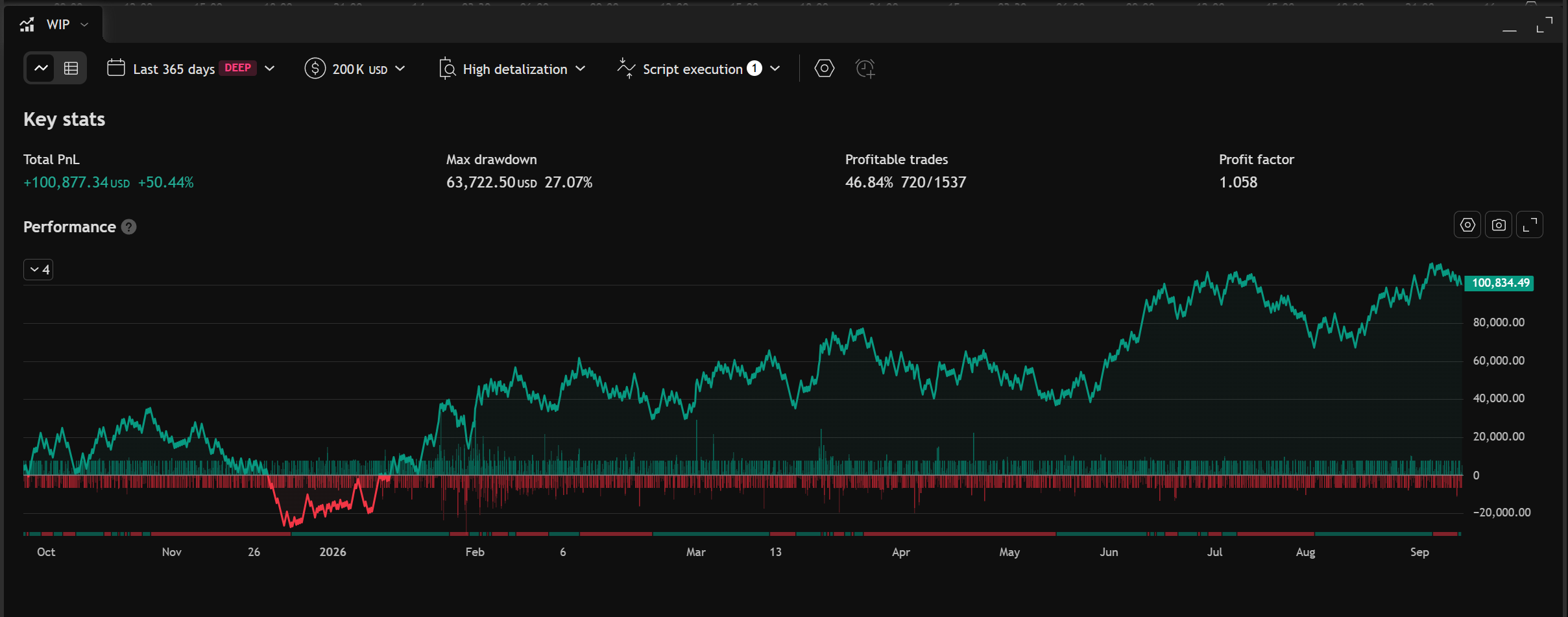 View full-size backtest
| Metric shown | Example result |
|---|---|
| Starting capital | $200,000 |
| Total P&L | $100,877.34 (+50.44%) |
| Maximum drawdown | $63,722.50 (27.07%) |
| Profitable trades | 720 of 1,537 (46.84%) |
| Profit factor | 1.058 |
The displayed gain of $100,877.34 is relative to $200,000 in simulated starting capital. The profit factor of 1.058 means gross profits were about 5.8% greater than gross losses. This gives you a reason to look closely at costs, fill assumptions, and losing periods alongside the positive return.
Compare profit with drawdown
Drawdown measures a decline from a previous peak. Comparing profit with maximum drawdown helps you put the return in context:
Profit-to-drawdown ratio = net profit ÷ maximum drawdown, measured over the same period in the same currency units.
For this example, the ratio is approximately 1.58: $100,877.34 ÷ $63,722.50. It compares net profit with the largest drawdown. Profit factor compares gross profits with gross losses. See MetaTrader's testing metric definitions.
Keep the test period, trade size, costs, and number of trades beside either ratio. Different periods and position sizes can change the result. Use the figures together to decide what needs further testing.
Check the assumptions
Include realistic commissions and execution costs. Test different market periods, and set aside some historical data to evaluate the strategy after adjusting its rules. Repeatedly tuning parameters against the same history can lead to overfitting: rules that fit that period closely but perform poorly elsewhere.
Also check for repainting, where signals change after the fact, and lookahead bias, where historical decisions use information unavailable at the time. TradingView's broker emulator simulates fills; its assumptions matter. TradingView strategy documentation
Ask AI to help review the trades
Export the trade list and give AI the script, strategy settings, instrument, timeframe, and test period. A useful review asks for specific evidence:
Review this Pine Script, its settings, and the exported backtest trades.
The chart is Gold Spot / U.S. Dollar, Pepperstone, 15 minutes.

Explain whether the rules use only information available when each
decision is made. Check for repainting, lookahead bias, unrealistic
order fills, missing costs, and differences between historical and
real-time calculations.

Explain when entries fill and when stop-loss and take-profit orders
first become active. Identify any interval without those exit orders.

For each concern, point to the relevant code or trade and suggest a
way I can test it. Separate confirmed observations from assumptions.
Tell me what cannot be established from the supplied files.
AI can help find inconsistencies, but these files cannot establish how a broker would have filled the historical trades. Next, use a demo setup to observe actual execution.
Before continuing: you can explain the rules and results, and know which assumptions to check on demo.
Connect TradingView to a demo account through Hookmode
For this stage, you need a Windows PC that stays on and online, MetaTrader 5 installed, a broker demo account, a TradingView plan with webhook access, and a Hookmode beta invitation. TradingView also requires two-factor authentication for webhooks. TradingView webhook requirements
Ready to connect? Continue with the TradingView guide for device and account setup, webhook messages, and alert configuration. Use a demo account for your first connection, then return here to follow the signal and compare the results.
Connect your TradingView strategy to HookmodeSet up the connection from your strategy alerts to your MT5 account.Check how the strategy's exits correspond to the broker-side stops and targets. Their timing and fill prices can differ even when they use the same intended distance.
Before continuing: the intended demo account, symbol, trade size, entry messages, and closing messages are configured.
Follow a signal all the way to MT5
Follow the first-trade guide to test the connection on demo. Then observe an entry triggered by the strategy to check that the TradingView alert is configured correctly.
Follow the same event through each part:
- TradingView: the alert fired with the expected opening instruction.
- Hookmode: the trace shows receipt, the matching rule, and the execution result.
- MT5: the intended account shows the matching position, direction, size, and protection levels.
- The close: follow the strategy exit or broker-side close into Hookmode and the MT5 account history.
One trade, two instructions
This example follows an opening signal and a closing signal through to their broker results.
TradingView
The strategy sends an instruction.
Message excerpt{
"action": "open",
"side": "buy"
}Hookmode
- Signal received
- Demo rule matched
- Opening limits checked
Windows + MT5
Your online device submits the instruction to the broker.
Buy position opened
Broker confirms the fill.
Quantity and protection come from your saved settings. The rule chooses the account and broker symbol.
Your full message also includes the webhook ID and signature.
This example shows a successful path with one matching demo position. A received signal can still be blocked or fail. Read the trace to confirm the outcome.
If the position does not appear, check each step: the TradingView alert, Hookmode's receipt of the signal, the matching rule, any limits that blocked execution, and the broker's response. Receiving a signal does not confirm that the order filled.
Before continuing: you have observed both an entry and an exit through the configured path.
Give the strategy time on demo
After the first successful trade, keep the strategy running on demo. Compare its intended trades with what actually happens before considering a live or prop-firm account.
For a strategy that trades frequently, a week or two can be a useful first observation period. Allow longer if it trades less often. Observe enough activity to check entries, exits, losing trades, and how the configured limits behave.
Keep the script and settings unchanged during the comparison. TradingView saves a snapshot when a strategy alert is created; recreate the alert after relevant script or setting changes. TradingView strategy alerts
Compare the same demo observation period across the TradingView trades, alert log, Hookmode records, and MT5 history:
- Do the intended entries and exits have corresponding outcomes?
- Are the instrument, direction, and size correct after broker lot conversion?
- Are any signals or trades missing or duplicated?
- Did a stop, target, manual close, or configured limit explain a difference?
- Can price, timestamp, and P&L differences be explained by data feeds, spread, fees, execution delay, or slippage?
You should be able to explain what happened to each signal. Broker fills and P&L can differ from the simulation; investigate any differences you cannot account for before moving on.
Use this comparison prompt if helpful:
Compare these TradingView trades and alerts with the Hookmode records
and MT5 account history for the same period.

Match entries and exits using the instrument, direction, timestamps,
and available identifiers. Account for quantity-to-lot conversion and
time zones. Flag missing or duplicate activity, incorrect size, and
unexplained closing differences.

Separate documented blocks or broker closes from unexplained gaps.
Do not assume that similar timestamps prove two records are a match.
Explain the evidence for each finding and what I should check next.
Compare the same demo period
One entry from a sample demo week, followed across three records. All times are converted to UTC.
TradingView
Simulated trade
2,400.00
Simulated entry price
- Quantity
- 100 units
- Time
- 10:00:00 UTC
- Entry ID
- Long
Hookmode
Rule and execution result
Filled
Matched rule: Gold demo
- Size sent
- 1.00 lot
- Fill time
- 10:00:02 UTC
- MT5 position
- 42001
MT5
Broker fill
2,400.20
Recorded entry price
- Volume
- 1.00 lot
- Time
- 10:00:02 UTC
- Position
- 42001
Match the records. Check the account, symbol, direction, converted size, and available IDs. Similar timestamps alone do not prove a match.
Explain the +0.20 price difference. Check the data feed, spread, and execution timing. A matching trade can still have a different fill price.
Sample data, not an actual run. With a rule risk factor of 1.00×: 100 units ÷ 100 units per lot = 1.00 lot. Verify the symbol mapping and contract size for your broker. Repeat the comparison for exits and investigate missing or duplicate activity.
Before continuing: you understand the differences and have resolved unexplained execution problems. Working automation and evidence of a profitable strategy are separate questions.
Decide whether to move to a live or prop-firm account
Once the demo setup behaves as intended, review whether the results and risks fit the account you plan to use. Recheck that account's broker symbol, contract size, trade size, and configured limits. Compare its margin requirements and trading costs with the assumptions you tested on demo.
For a prop-firm account, read that firm's current automation and trading rules. Compare how it measures daily loss and drawdown with your Hookmode settings. Hookmode's limits count only trades placed through Hookmode; they do not replace the firm's own calculations. See the prop-firm guardrails guide.
Keep monitoring after the switch. Your device must remain on and connected. If it is offline when a signal needs execution, Hookmode records a failure; the trade is not queued for later. Learn how to pause new activity and how to manage positions that are already open. Hookmode execution and device behavior
Return to demo when a material change to the rules or execution setup needs testing.
By the end, you should understand the strategy, have tested its alerts, and be able to follow each trade through to its result in your MT5 account.