Step 3 of 5
Add your MetaTrader 5 account
Add the account details in the web app. Enter the broker password only in the desktop app on your own device.
Updated
Before you start
MetaTrader 5 must be installed on the PC, and you must have logged in to your broker in it at least once. That writes the broker's server into MT5's server list, and Hookmode copies that list.
- 01
Add your account details
Click Add account in the Device paired dialog. Later, use Add account on the Accounts page, or Add account in the web app in the desktop app. The dialog “Add MetaTrader 5 account” asks for a display name, the account type (Prop firm, Live or Demo), the server (exactly as MT5 shows it, for example Broker-Server2) and the login. With more than one paired device, it first asks which device runs the account. There is no password field on the web, ever.
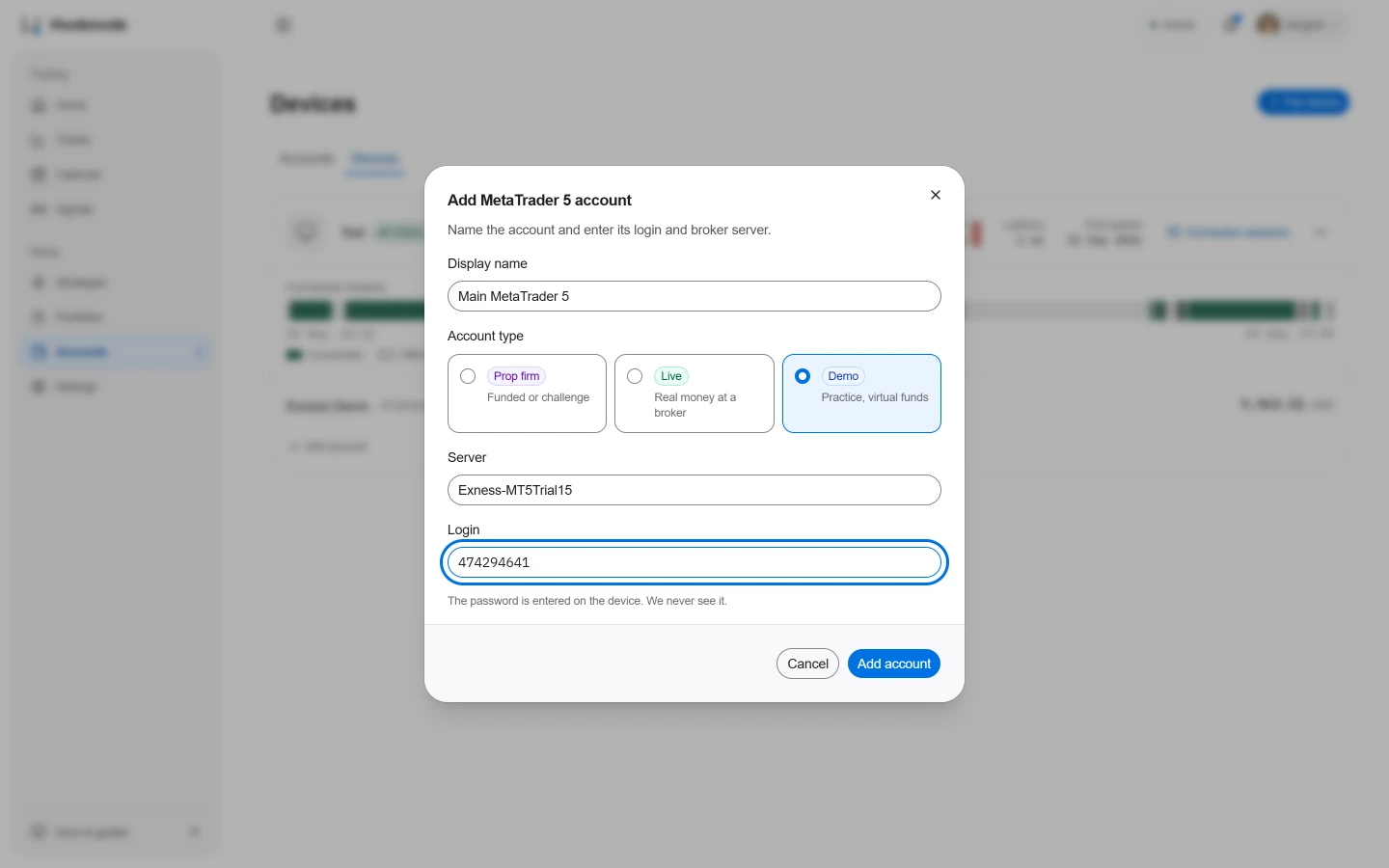
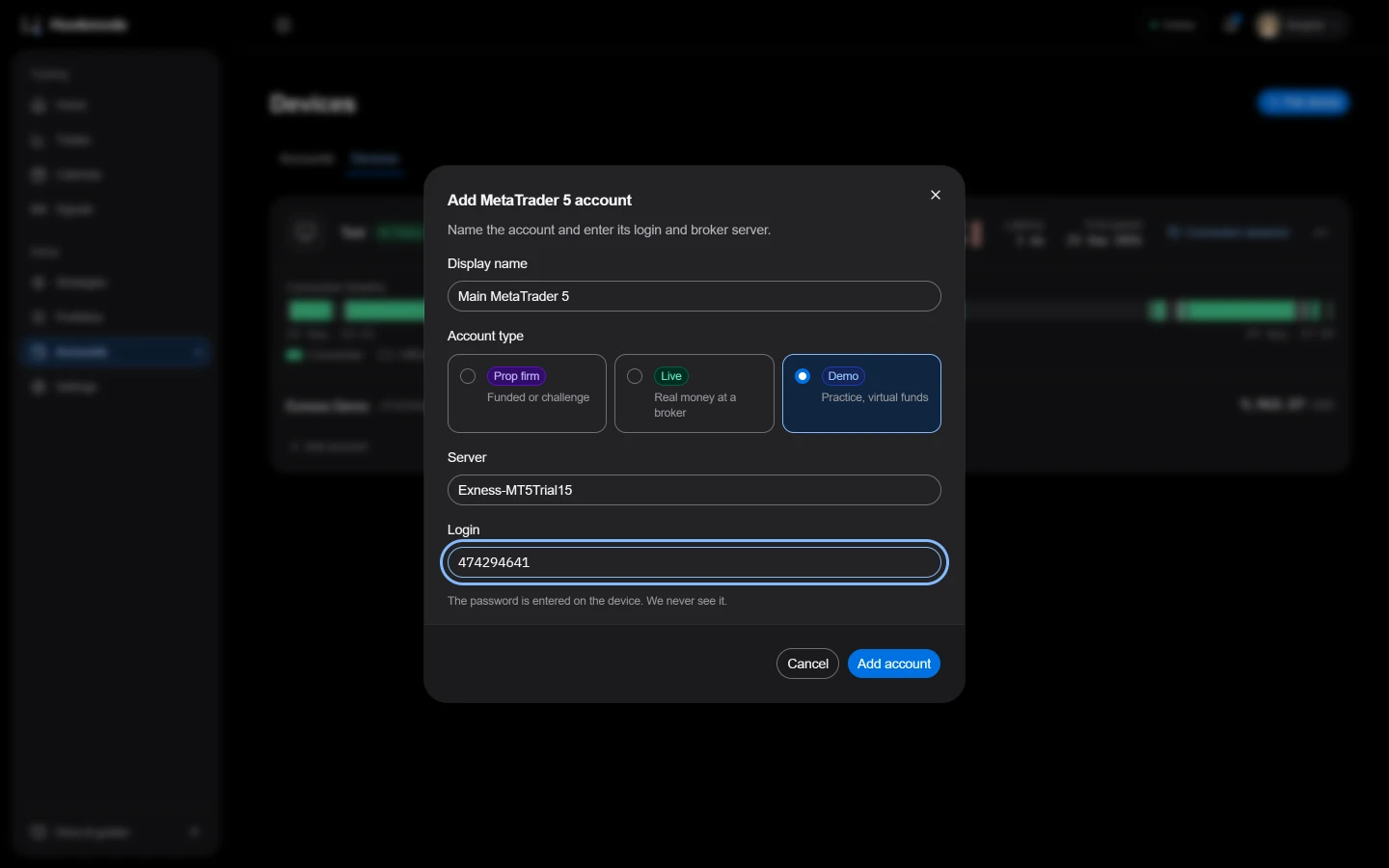
The Add MetaTrader 5 account dialog. No password on the web. - 02
Choose the MetaTrader 5 terminal
The account status shows Waiting for password, and the desktop app pops up. The first time, it lists the MetaTrader 5 terminals it finds on the PC. Click Use this terminal next to the one you log in with. If yours is not in the list, click Choose terminal… and pick its terminal64.exe.
- 03
Enter the password on your device
Then the password dialog opens, with the name and the server shown read-only. Enter the password. The app shows Verifying… while it connects to the broker, for up to 15 seconds.
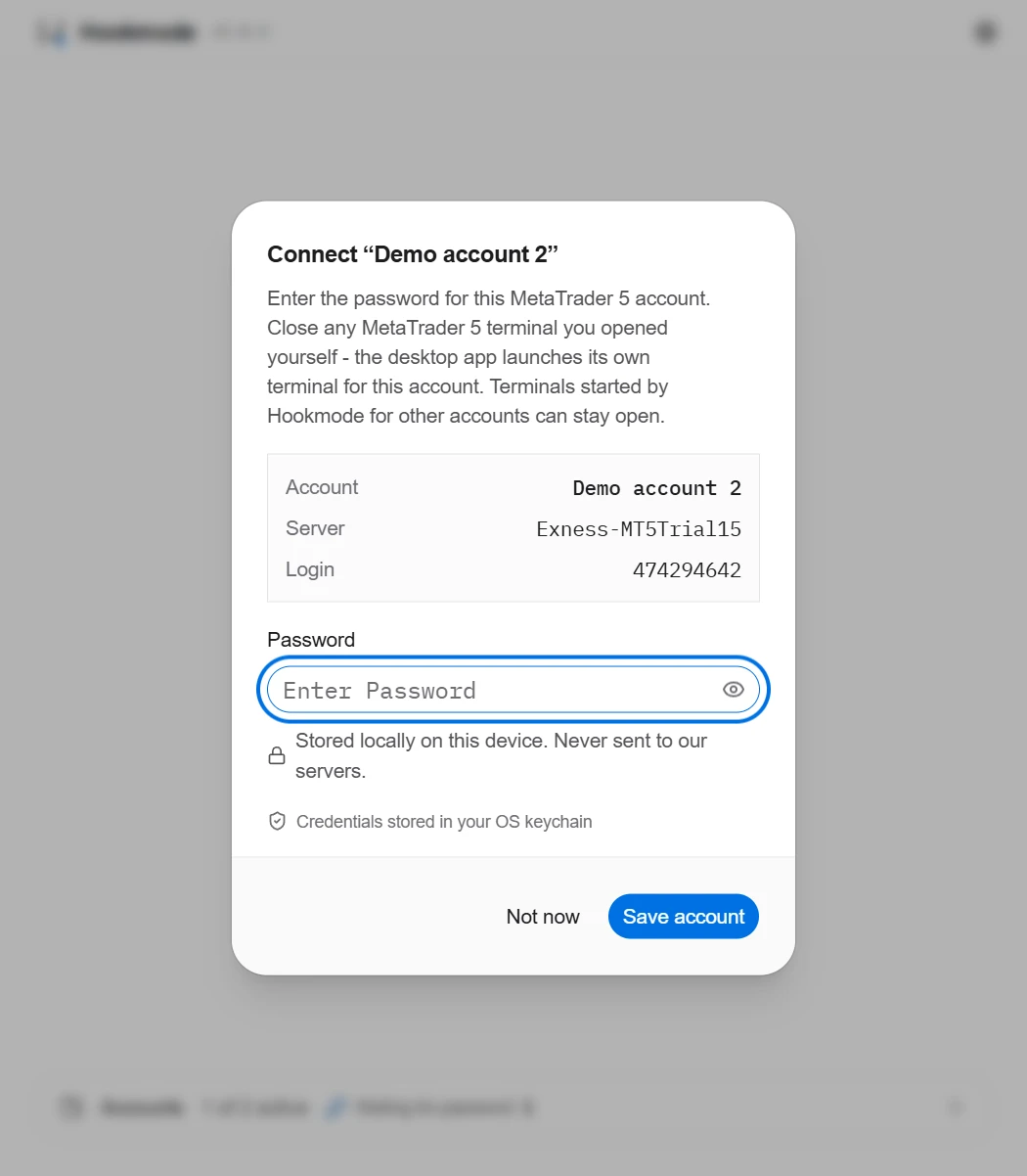
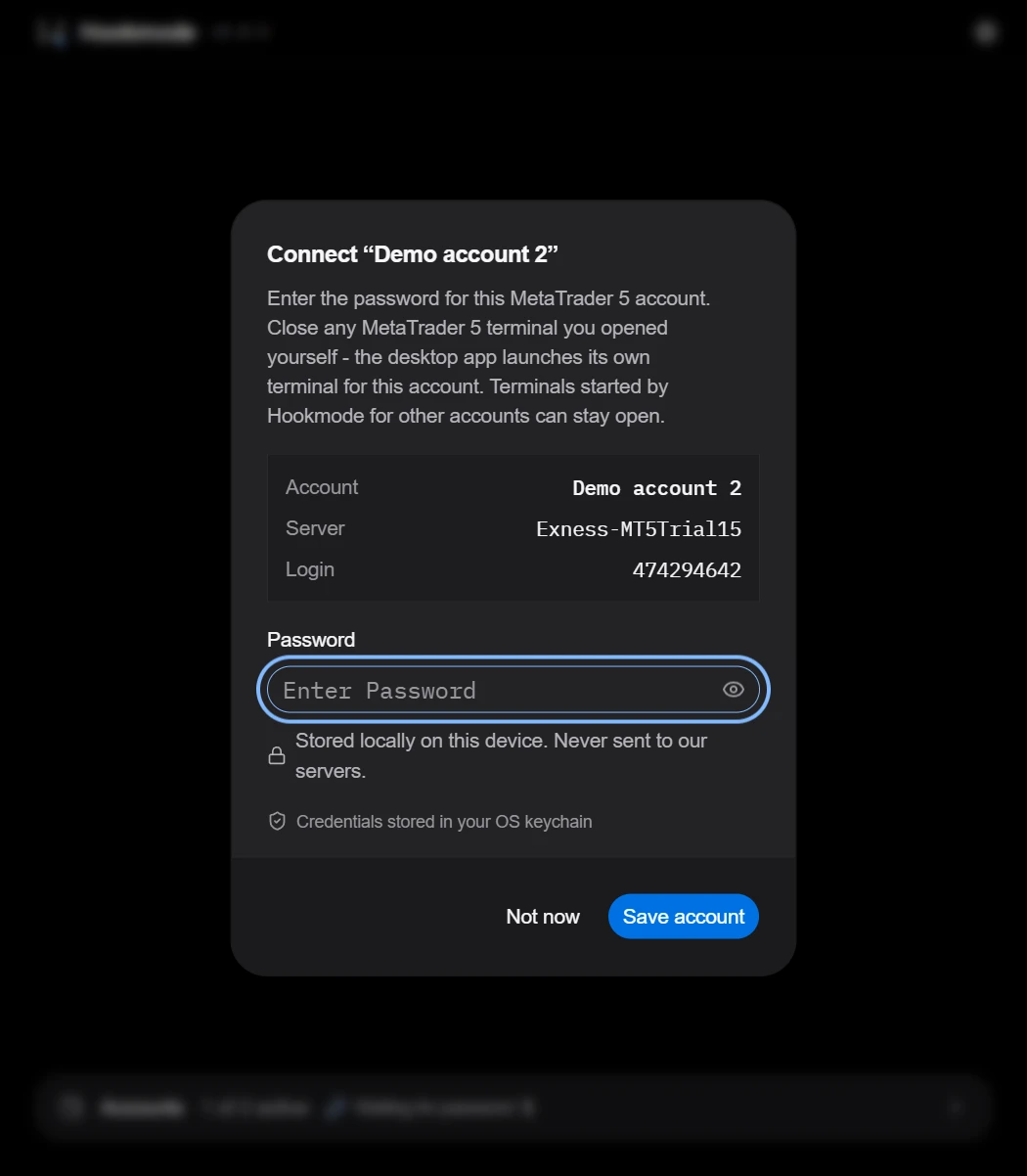
The password prompt on the desktop: name and server read-only. - 04
Check the account status
After verification succeeds, the account shows Active on the web and on the desktop. You can pause the account to stop opening new trades. Review any existing positions separately.
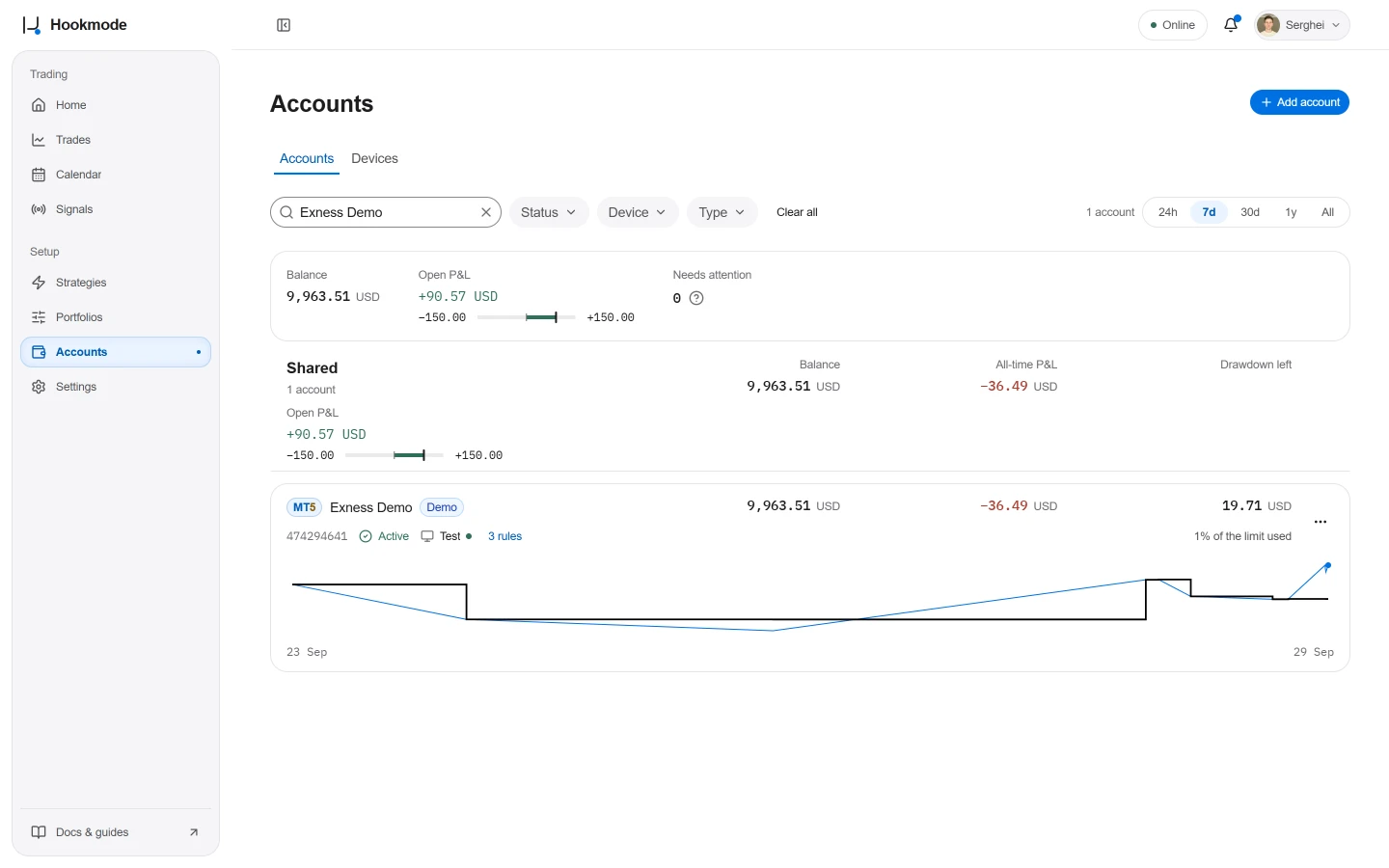
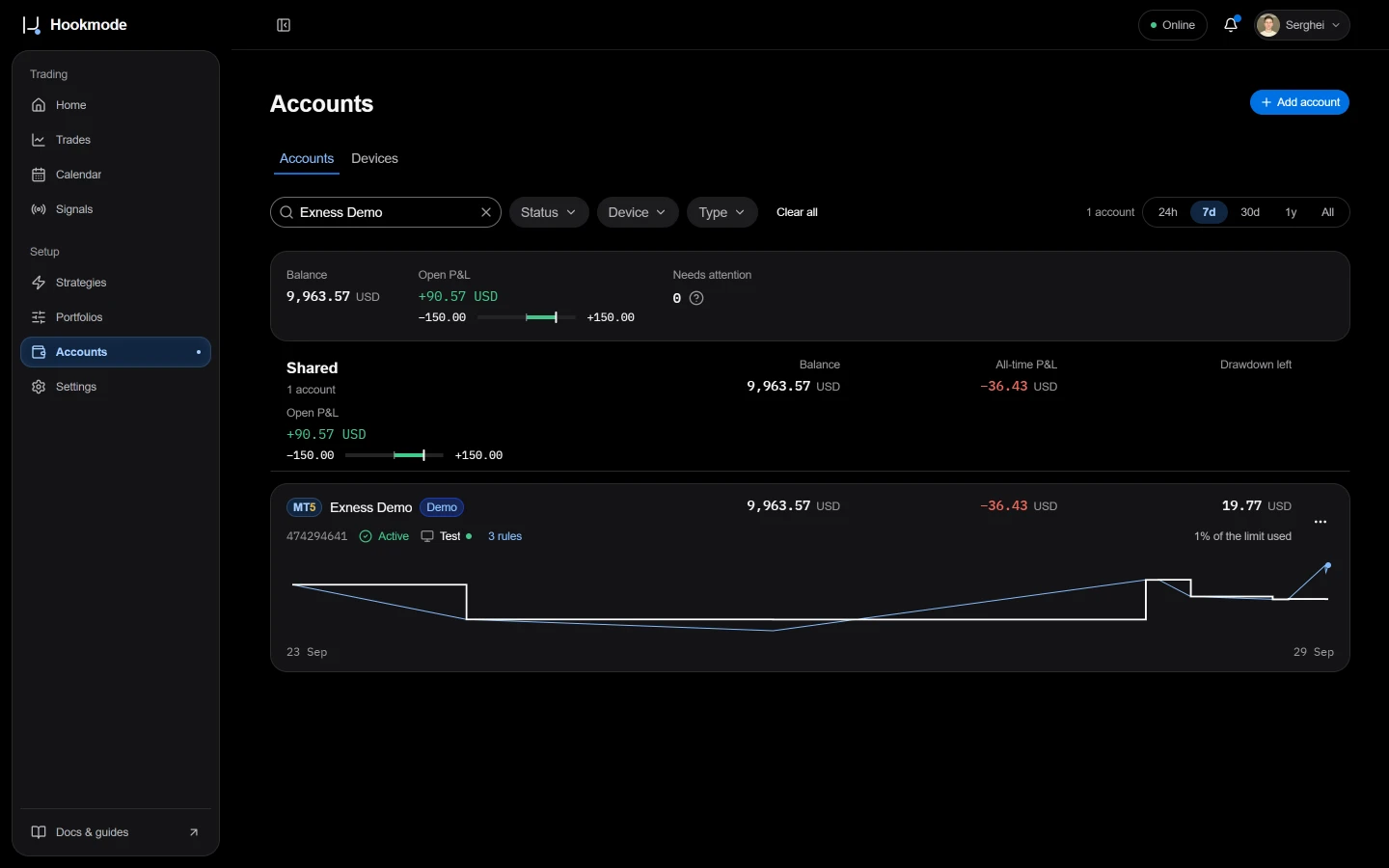
The Accounts page with the account Active.
If something goes wrong
- invalid_credentials
- Wrong password. Enter it again.
- connection_failed
- The terminal is not reachable, or the terminal path is wrong. Gear menu → MT5 bridge → Change terminal path….
- server_not_found
- The broker server is missing from MT5's server list. Log in once in MetaTrader, then retry.
- Password missing
- Shown after re-pairing a device. Enter the password again on the desktop.