Step 2 of 5
Install and pair the desktop app
Your Windows device connects Hookmode to the MetaTrader 5 terminal. Install the desktop app, then pair it with your workspace.
Updated
Before you start
Do this on the Windows PC that will run the trades. Everything here happens once per machine.
- 01
Download the desktop app
Open the account menu in the web app and click Download desktop app, or use the direct download below. Run the installer on the Windows device that will execute your trading instructions.
- 02
Review the installer warnings
Beta builds are not code-signed yet, so Windows SmartScreen may show “Windows protected your PC” on first run. Verify that you downloaded the installer from Hookmode, read the warning, and decide whether to continue.
On Windows 11 PCs with Smart App Control turned on, the unsigned beta installer may be blocked. Do not turn off a Windows security protection just to install the beta unless you have reviewed Microsoft's current guidance and accept the trade-off. Re-enable behavior depends on your Windows version and updates.
- 03
Open the desktop app
The first launch shows the Welcome to Hookmode screen. It sends you to the web app for a pairing code. When you have the code, click Enter the code.
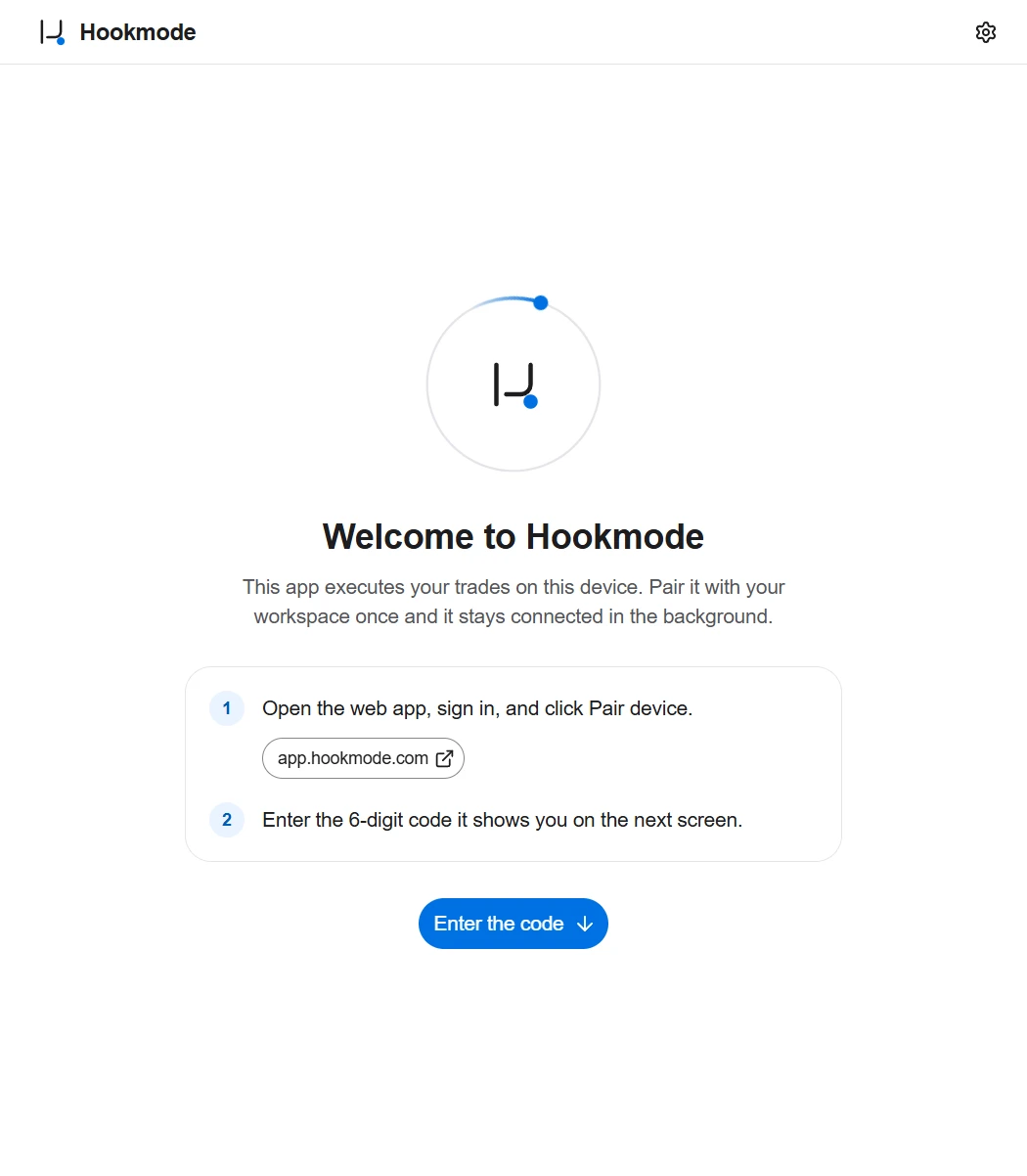
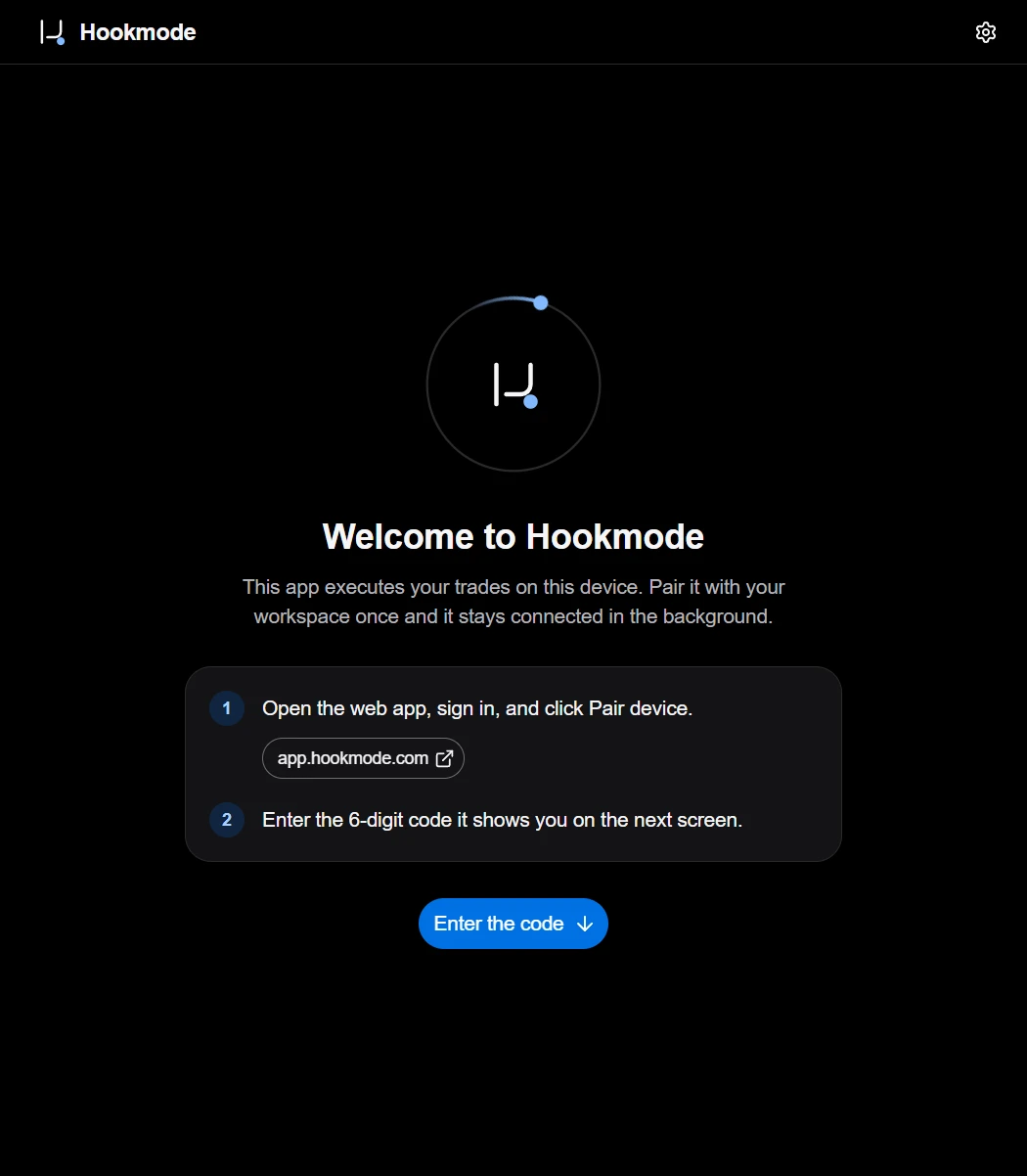
The desktop app on first launch, before pairing. - 04
Create a pairing code
In the web app open Accounts, then the Devices tab, and click Pair device. Name the device. A 6-digit code appears, valid for 10 minutes and usable only once.
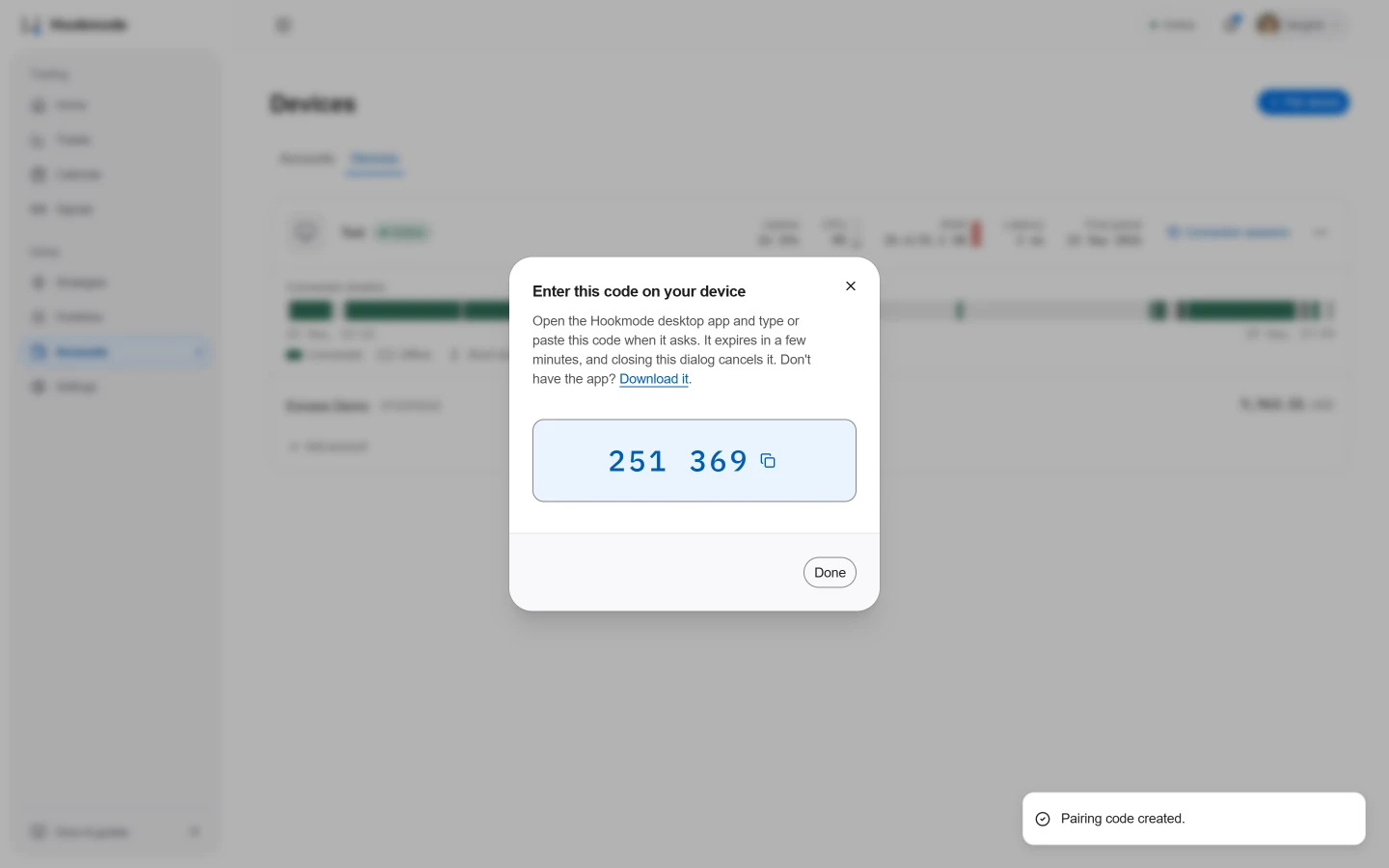
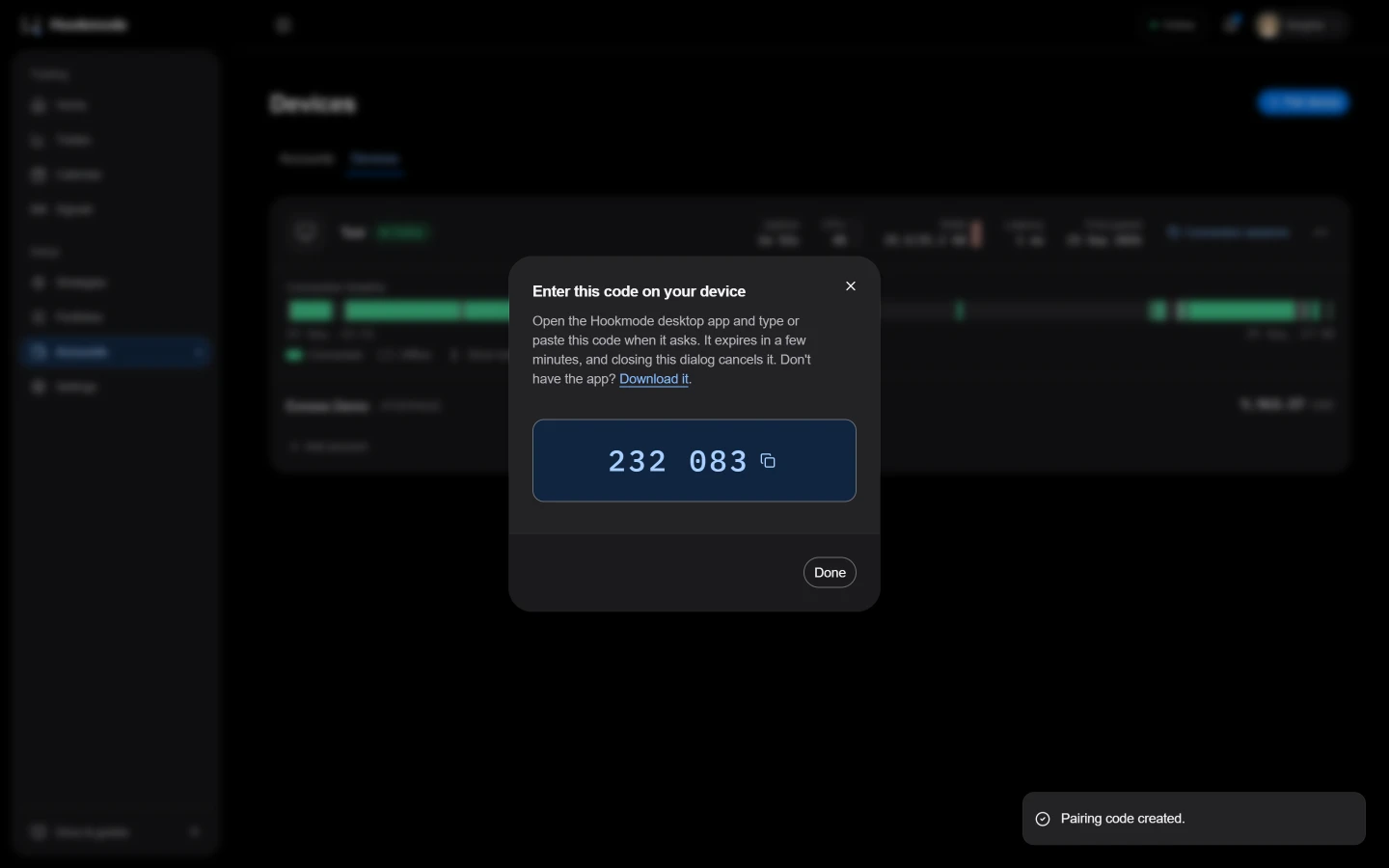
Accounts → Devices tab → Pair device: the code, valid 10 minutes. - 05
Pair the device
Enter the code in the desktop app, or accept the one-click offer when the app detects the pairing from the same network. The Pair device dialog changes to Device paired. Click Add account to add your MetaTrader 5 account to this device now, or Done to do it later.
- 06
Review the power settings
The Power settings dialog opens once: Keep PC awake, Ignore the power button, Start with Windows, Keep network adapters on. The last one asks for admin rights. On a dedicated machine, turn all four on. Reopen the dialog later from the gear menu → Device → Power settings.
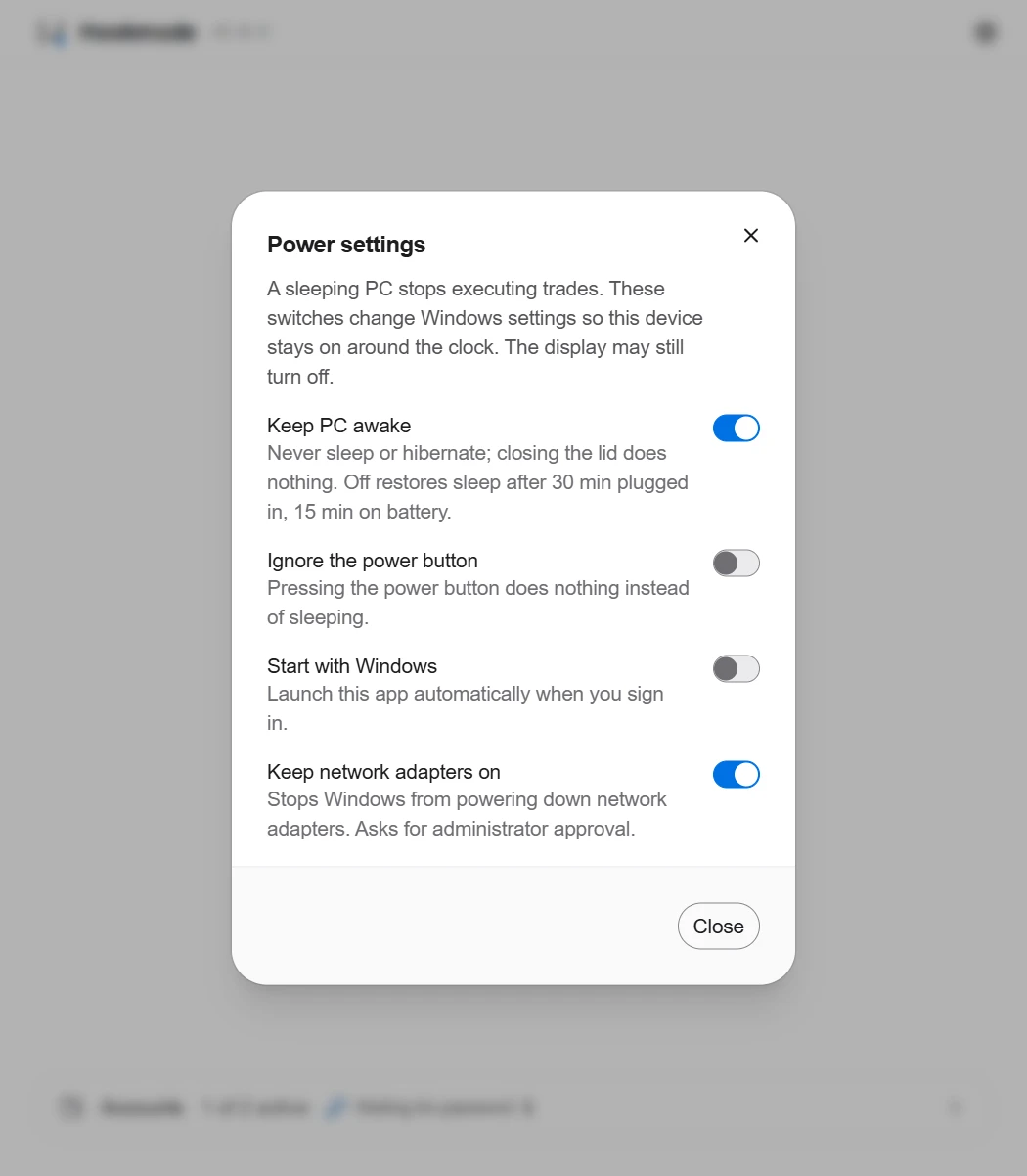
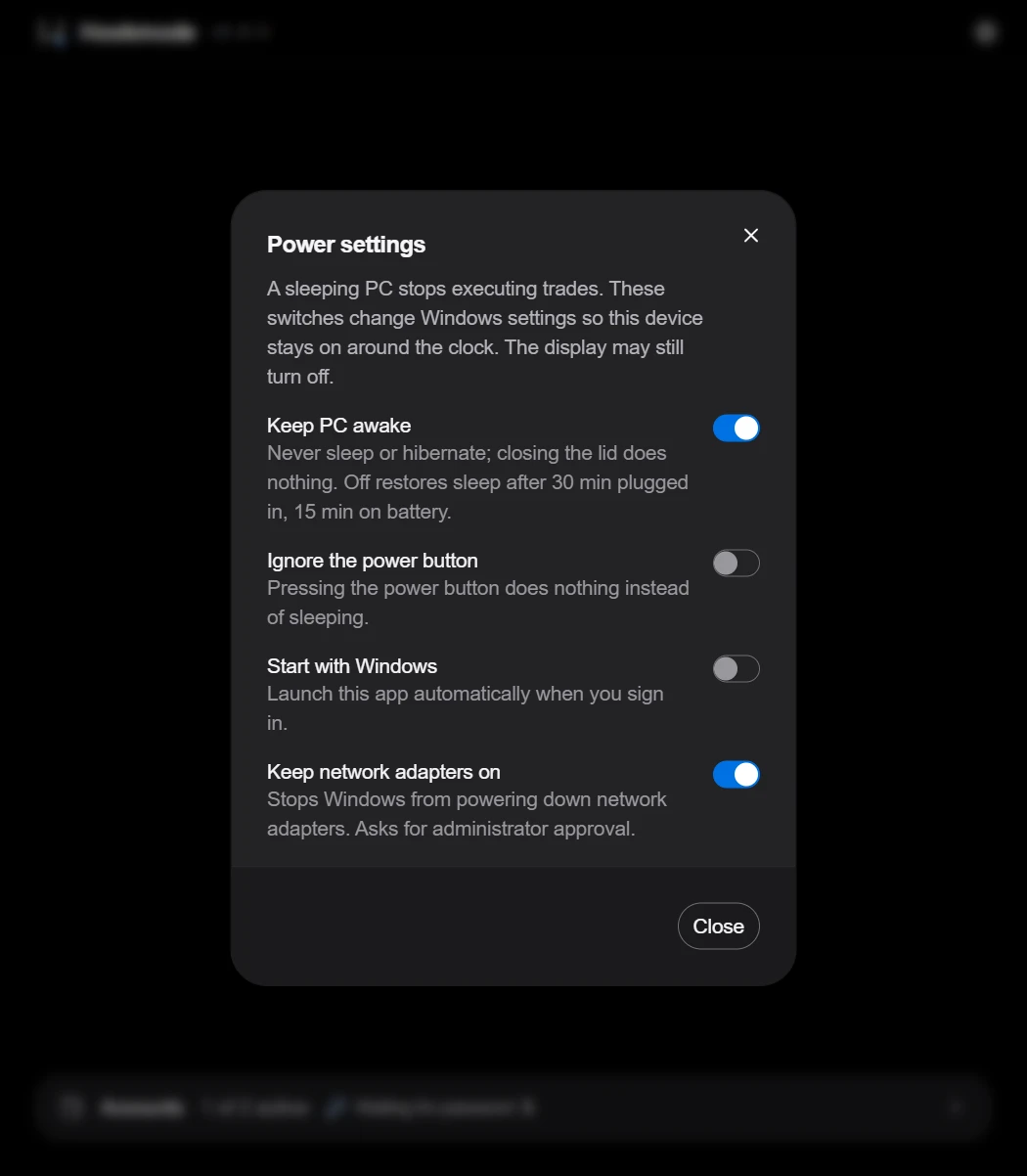
The Power settings dialog. On a dedicated machine, turn all four on. - 07
Keep the app running
Closing the window hides the app to the tray; quit from the tray or the gear menu. Updates download automatically. A “Restart now” toast appears when one is ready.
If something goes wrong
- Code expired
- Make a new one from the Devices page. The old code is revoked.
- Five wrong codes
- Five wrong codes within 15 minutes close the connection. Wait, then retry.
- Reset PC
- “Pair again” on the Devices page re-links a reset PC, but every account password must be entered again on the desktop.